
Step 1 — Plug in the interface
Plug your RTD or MPVI interface and your laptop into the vehicle.
Step 2 — Connect to the vehicle
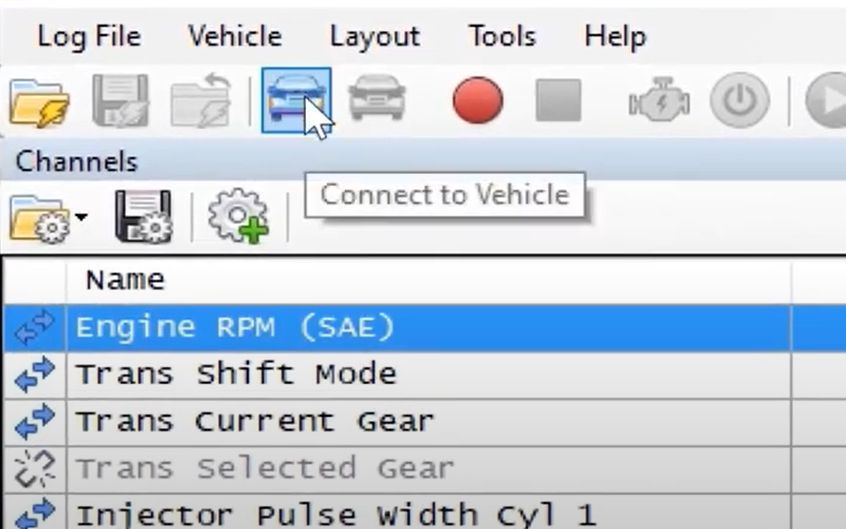
Click the Connect to Vehicle icon and wait for the connection to complete.
Step 3 — Open special functions
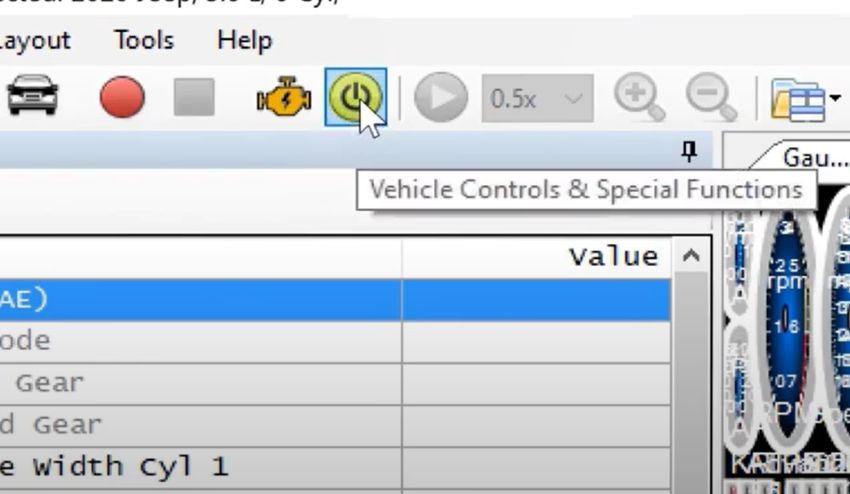
Click the Vehicle Controls & Special Functions icon.
Step 4 — Open Speedometer Adjustment
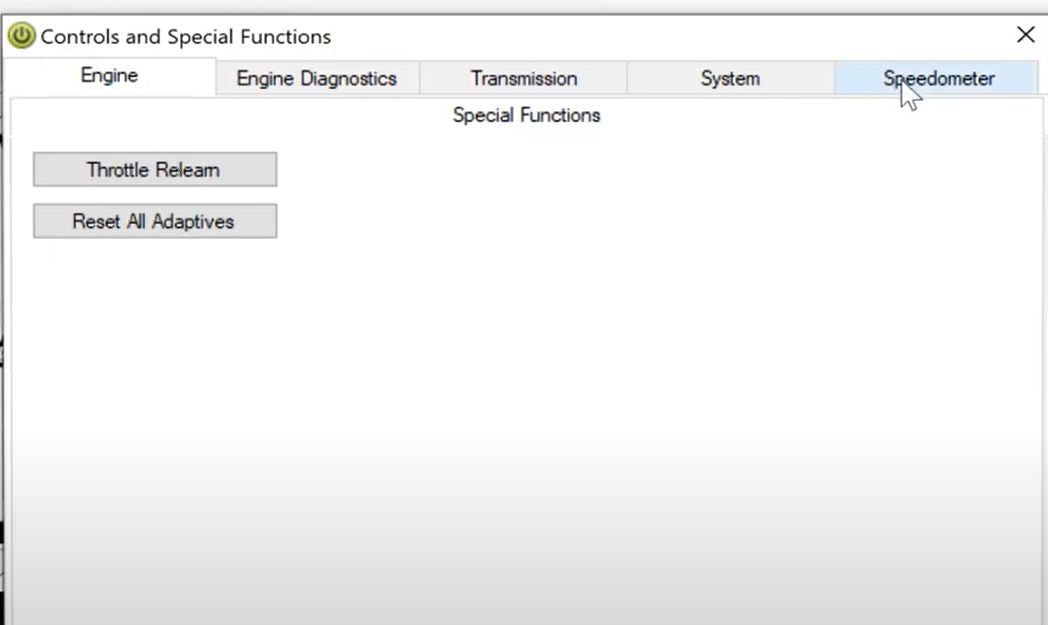
Inside that box, click the Speedometer tab and select Speedometer Adjustment.
Step 5 — Enter your actual axle ratio
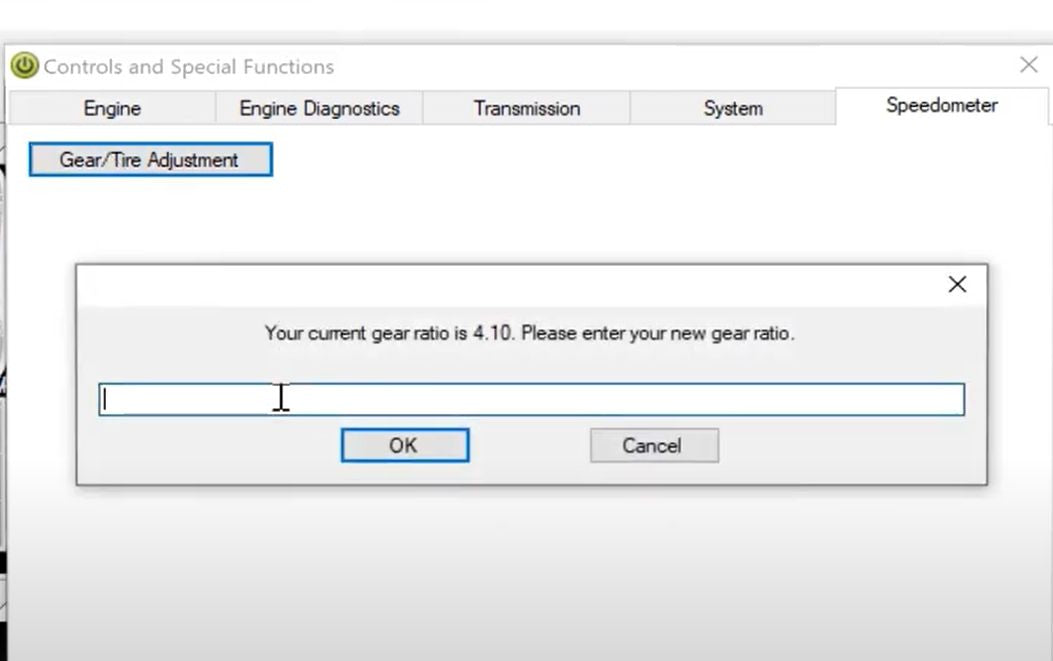
The software will show the vehicle’s current stored axle ratio. Enter the axle ratio that is actually in the truck.
If the displayed value already matches, re-enter the same number anyway. The field has to receive an entry before you can continue. Click OK.
Step 6 — Calculate Requested Tire Size
This is the number VCM Scanner wants next. Use the calculator below.
If you listed more than one tire size on the tune form, (this does not apply to forced induction tunes) enter the value that matches the tires that are on the truck right now, and load the matching tune.
Metric
285 / 50 R22Standard
Overall dia × width × rimCopy the Revs / Mile or Revs / Km. Whatever value Scanner asks for. That is the value you will type in the next step. Circumference in mm is there if the prompt asks for it instead.
Step 7 — Enter the tire data in VCM Scanner
When the tire size screen appears, enter the Revs / Mile or Revs / Km value from Step 6. Whatever value Scanner asks for. Do not type a tire size string.
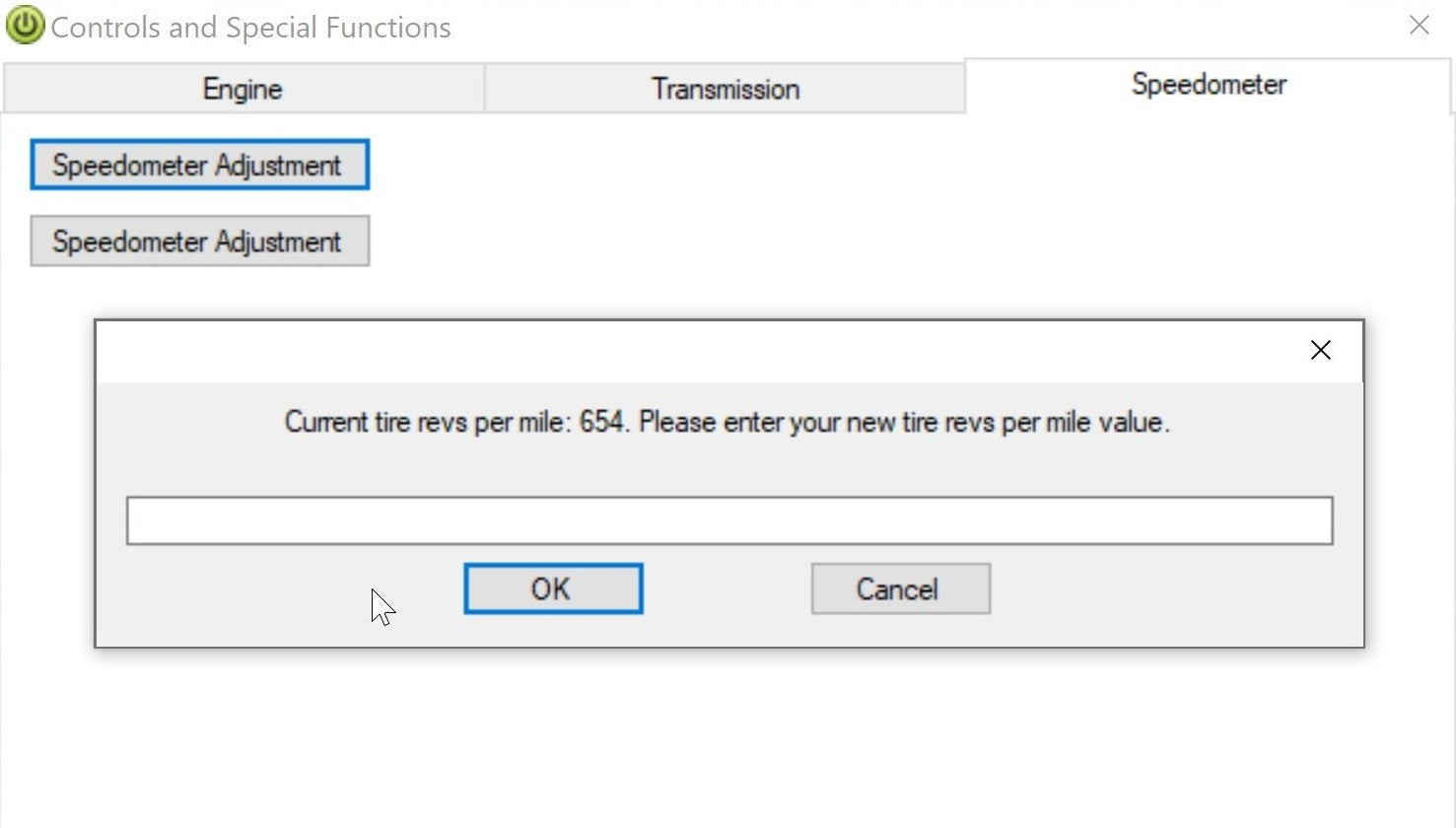
Revs Per Mile example
If there are any other prompts, click OK on them. That finishes the in-vehicle calibration.
Step 8 — Verify the speedometer against GPS
After calibrating the speedometer and installing your tune, you MUST verify the speedometer is accurate. Use a phone app like Waze, a Dragy, or any other reliable GPS speed source.
- The easiest check is a relatively high, stable highway speed. Any error gets larger as speed goes up, so it is easier to see.
- Test between 80–100 mph if you can do that safely.
- If the speedometer is within ±1 mph of GPS at 80–100 mph, you are done. Do not chase a fraction of a mph.
Step 9 — If it is still off, use Speedo vs GPS correction
If the speedometer is more than ±1 mph off between 80–100 mph, do not guess a new Revs / Mile number and do not write us “my speedo is 7 mph off.” We need both numbers — for example Speedo = 100 mph and GPS = 105 mph.
Put those two speeds into the calculator below, along with the current Revs / Mile you entered in Step 7. Take two samples if you can (the worksheet averages them). Copy the new whole-number Revs / Mile, go back through Speedometer Adjustment, and enter that corrected value. Then check GPS one more time.
Speedo vs GPS Correction
Use only after Step 8Sample 1
Sample 2 — optional average
If any other prompts appear in VCM Scanner, click OK. That’s it.

